
Create a Markdown landing page
Build a full landing page with Markdown layout directives and keep the common site header.
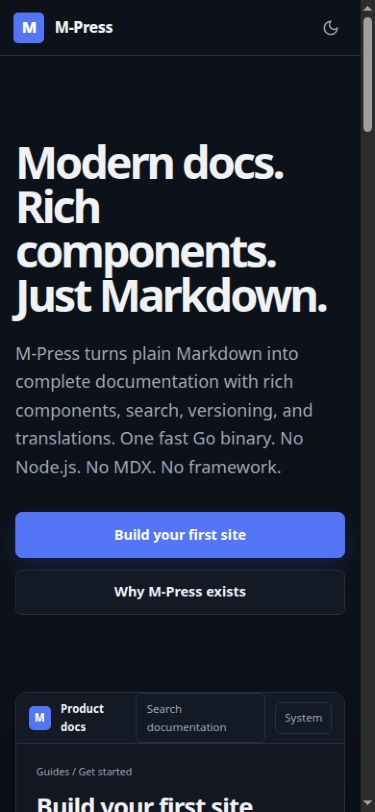
Use a landing layout when a page needs a product-specific design. The layout keeps the header, search, language selector, version selector, and theme control. It removes the documentation sidebar, table of contents, automatic page title, and previous or next links.
Set the landing layout
Add layout: landing to the page frontmatter:
---
title: Product documentation
description: Build with the product.
layout: landing
---

@section{variant=hero}
@columns{variant=hero}
@column{variant=hero-copy}
@headline
Build with the product.
Start with confidence.
@end

Create complete documentation from plain Markdown.

@actions
@button[Start the tutorial](/tutorials/first-site/){primary}
@end
@end

@column
Add a screenshot, terminal, or documentation preview here.
@end
@end
@end
The page source remains Markdown. The directives add semantic layout regions to the generated HTML. M-Press renders the complete page before it reaches the browser.
Add styles
Create a stylesheet such as landing.css. Then configure it:
build:
  customCSS: landing.css
Use page-specific selectors to prevent the landing styles from changing normal documentation pages:
.landing-page .mpress-section-hero {
  max-width: 72rem;
  margin: 0 auto;
  padding: 8rem 1.5rem;
}
The custom stylesheet loads after the default theme.
Check the result
Check these conditions at desktop and mobile widths:
- Keyboard focus follows the visual order.
- The heading structure starts with one
h1element. - Text and controls have sufficient contrast.
- The page does not cause horizontal scrolling.
- The page remains usable when JavaScript is disabled.
Run mpress build --strict and mpress check before you publish the page.
The same Markdown landing page must adapt to narrow screens: